Run Reports from a Mobile Device
Opening CRS from DataTrak or OBC gives you a full selection of reports and options. Sometimes, however, you may need to access reports on the go.
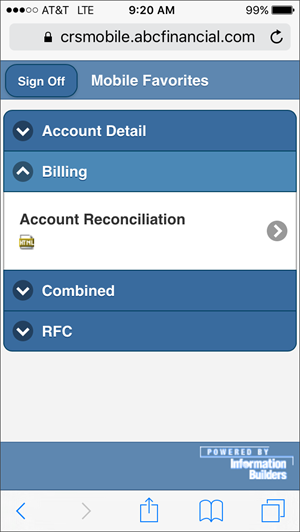
After you add reports to your Mobile Favorites, you can view them on your devices (for example, smart phones and tablets) by visiting crsmobile.abcfinancial.com.
Read more about requirements for running reports from a mobile device.
Add Reports to Mobile Favorites
Use the following instructions to add reports to Mobile Favorites.
You cannot add reports to Mobile Favorites from a mobile device.
To add reports to Mobile Favorites:
- Log on to CRS from your desktop.
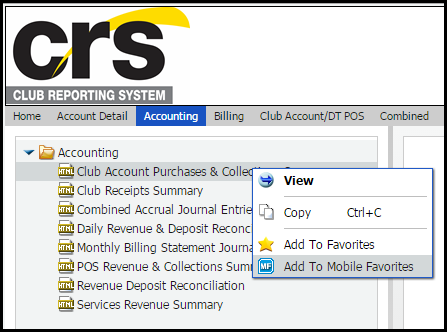
- Navigate to the report you want to add to Mobile Favorites. For example, we will add the Club Account Purchases and Collections Summary.
- Right click the report title.
- Click Add To Mobile Favorites.
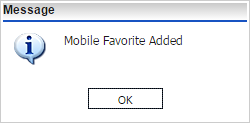
- A message will appear to confirm the report has been added to Mobile Favorites. Click OK.
Run Reports from a Mobile Device
Use the following instructions to run reports from a mobile device.
You cannot view queued reports from the mobile link.
To run reports from a mobile device:
- From your mobile device, open your web browser. For this example we will use Safari.
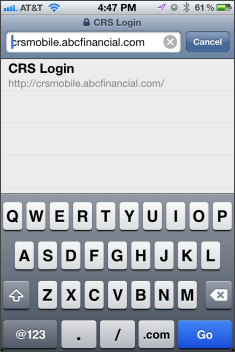
- Type crsmobile.abcfinancial.com into the address bar and tap Go.
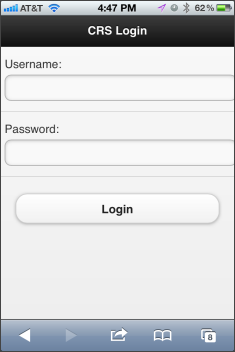
- Log on using your CRS username and password.
- Your Mobile Favorites page will load. Reports are organized by tab. Tap a tab name to view related reports.
- Once you select a report, the parameters page will load.